> For the complete documentation index, see [llms.txt](https://support.tiger.com/llms.txt). Markdown versions of documentation pages are available by appending `.md` to page URLs; this page is available as [Markdown](https://support.tiger.com/english/connections/crypto-exchanges/backpack.md).
# Backpack
{% hint style="success" %}
Starting from version 7.1, the [Tiger.com](https://tiger.com/) terminal supports connecting to the Backpack exchange with the ability to trade spot and futures instruments (in USDC), receive real-time and historical market data, and synchronize balances, orders, and positions.
{% endhint %}
To set up the connection, follow these steps:
{% stepper %}
{% step %}
### Registration
Register on the[ Backpack exchange website](https://backpack.exchange/).
{% endstep %}
{% step %}
### Verification
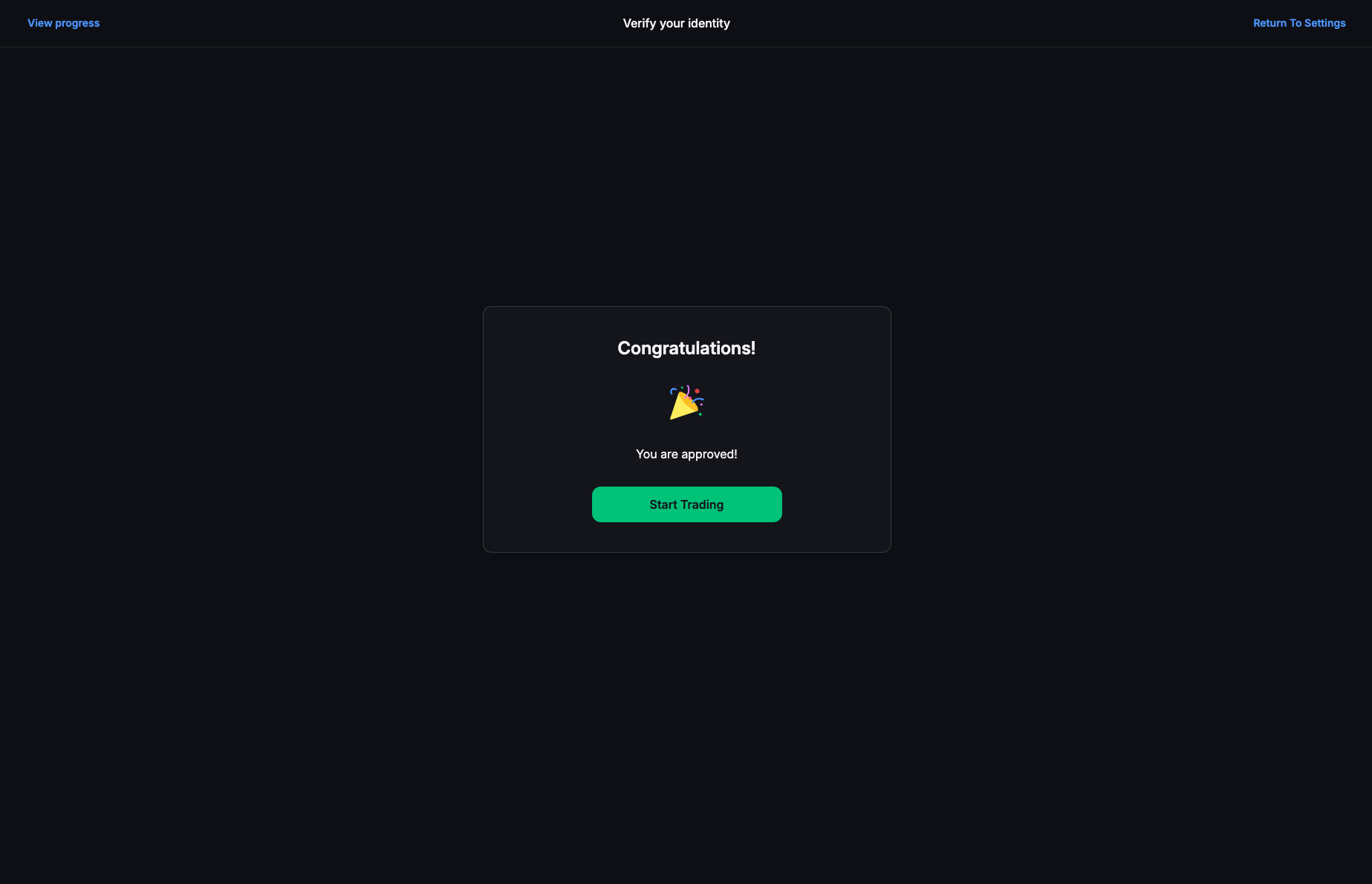
After registration, the exchange will prompt you to complete verification. If the KYC procedure is successful, you will see the following message on the [corresponding page](https://backpack.exchange/user/kyc/individual):
Click the **"Start Trading"** button to proceed with further setup.
{% endstep %}
{% step %}
### 2FA
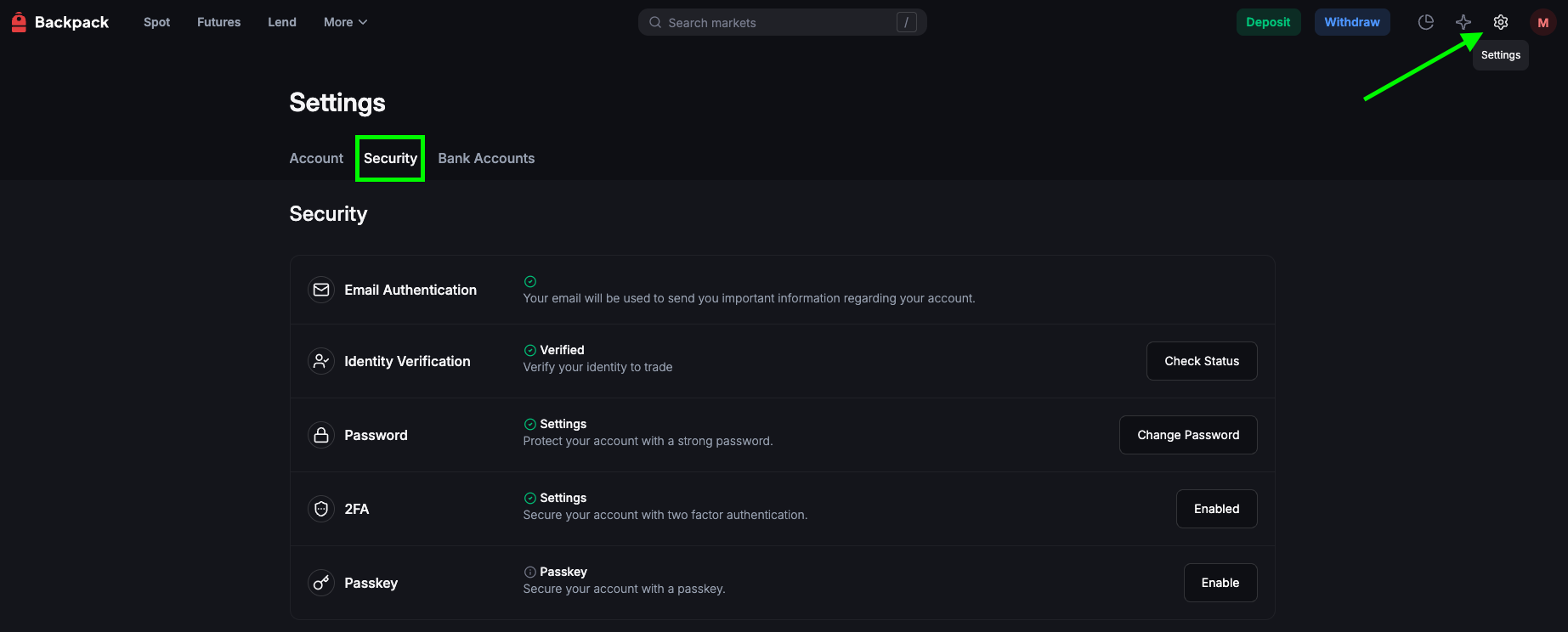
Open the **"**[**Settings - Security**](https://backpack.exchange/settings/security)**"** section and activate two-factor authentication (2FA) there:
{% endstep %}
{% step %}
### Navigating to API
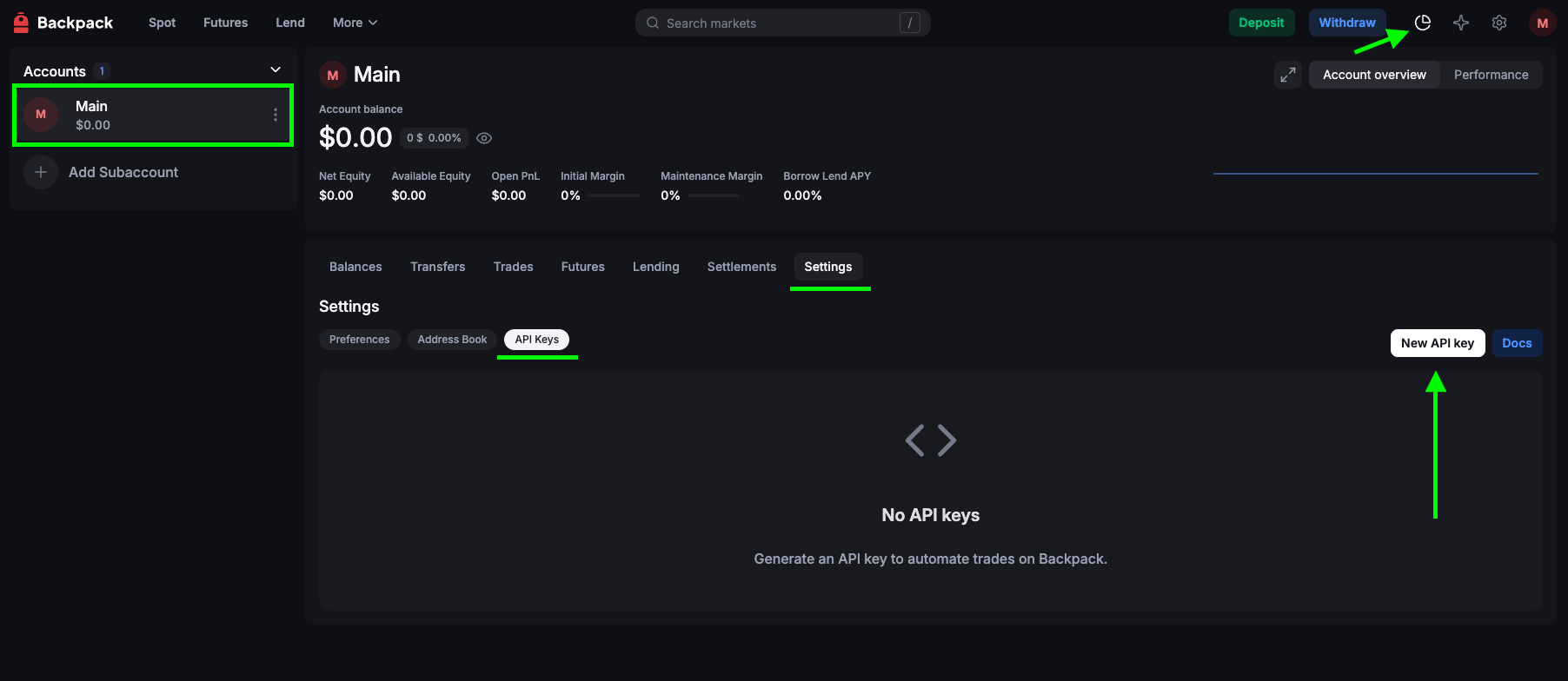
1. In the top menu, go to the **"Portfolio"** section.
2. Select a trading account (in our case - **Main**).
3. Go to the **"Settings - API keys"** section.
4. Select **"New API key"**:
{% endstep %}
{% step %}
### API Permissions
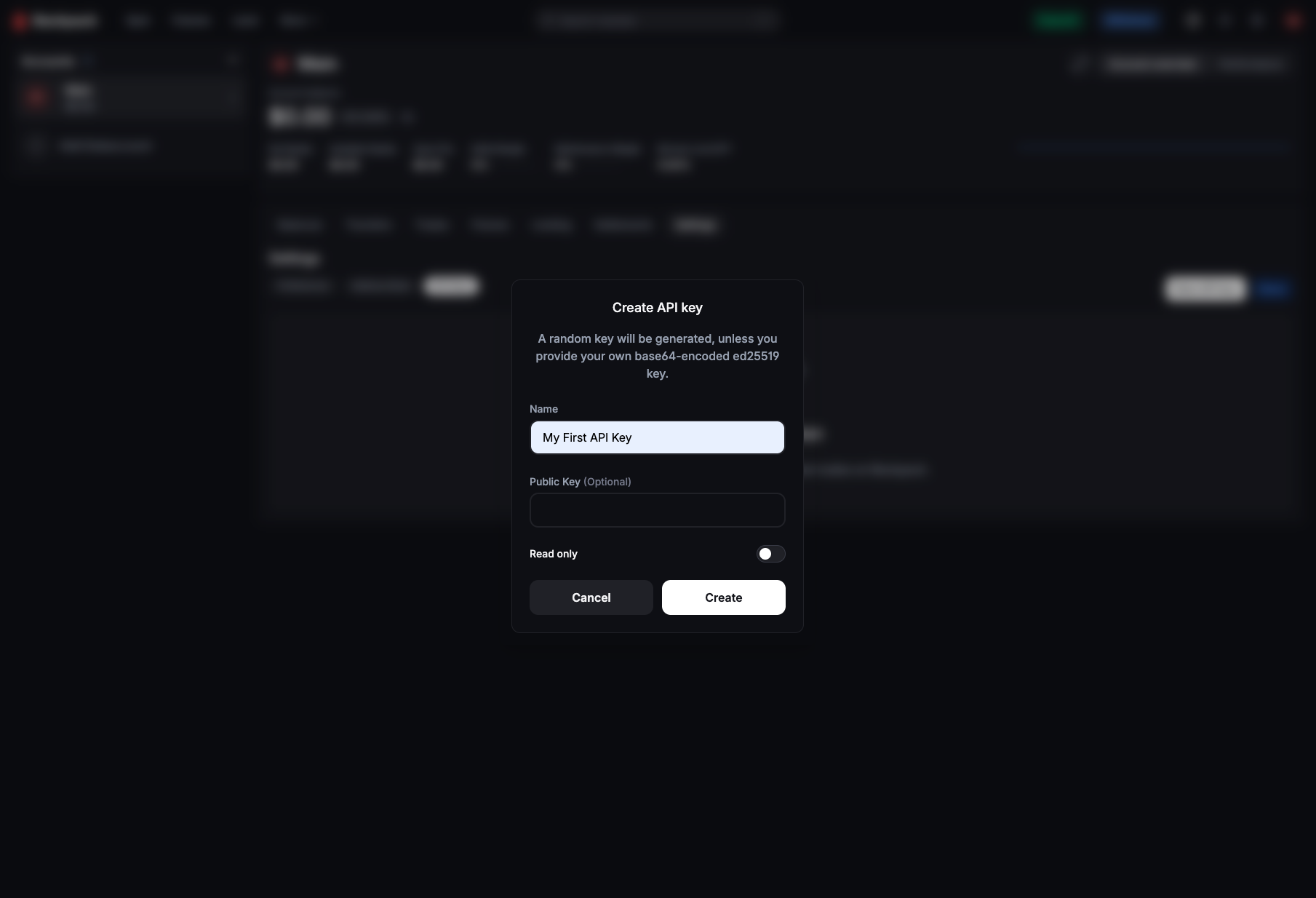
Enter an arbitrary key name.
To perform trading operations via API keys, the **"Read Only"** toggle must be left **disabled**.
* If you want a system-generated public key, leave the **"Public Key"** field empty.
* Otherwise, you must provide a key created using the Ed25519 algorithm and presented as a base64 string.
{% endstep %}
{% step %}
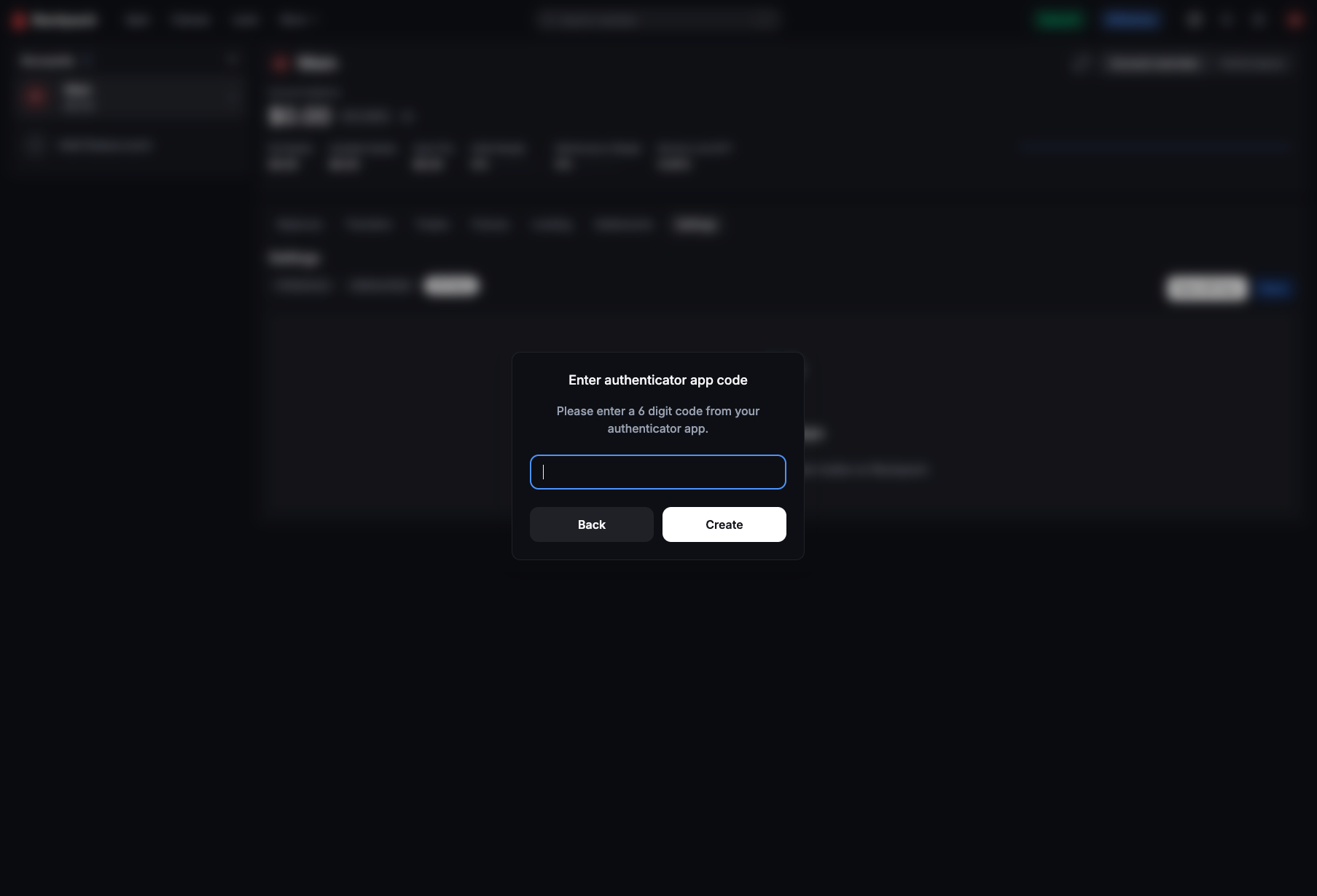
### Confirmation
Enter the verification code from Google Authenticator for confirmation:
{% endstep %}
{% step %}
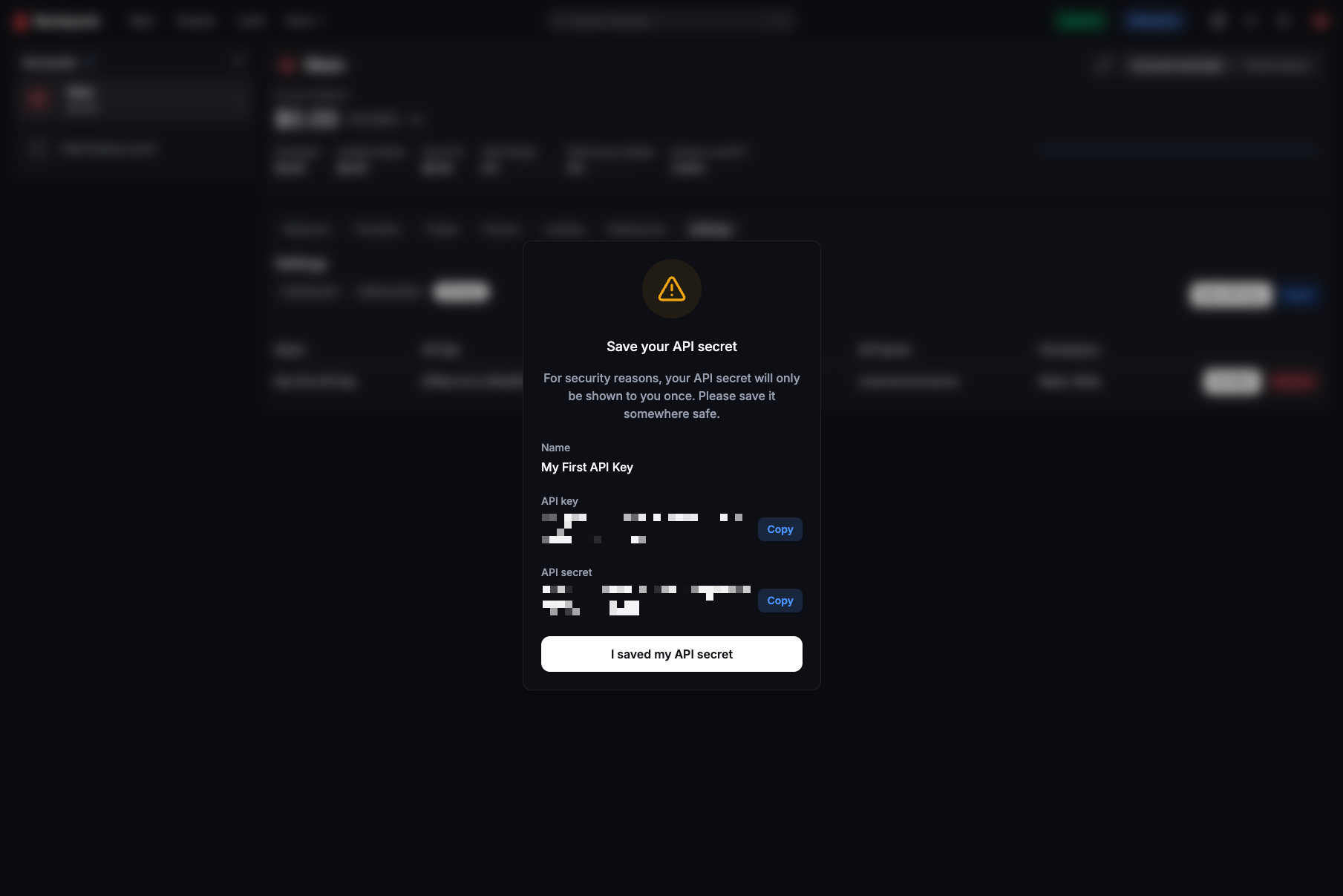
### Key Information
The API keys will appear on the opened page; save them in a secure place:
{% endstep %}
{% step %}
### Connecting in the Terminal
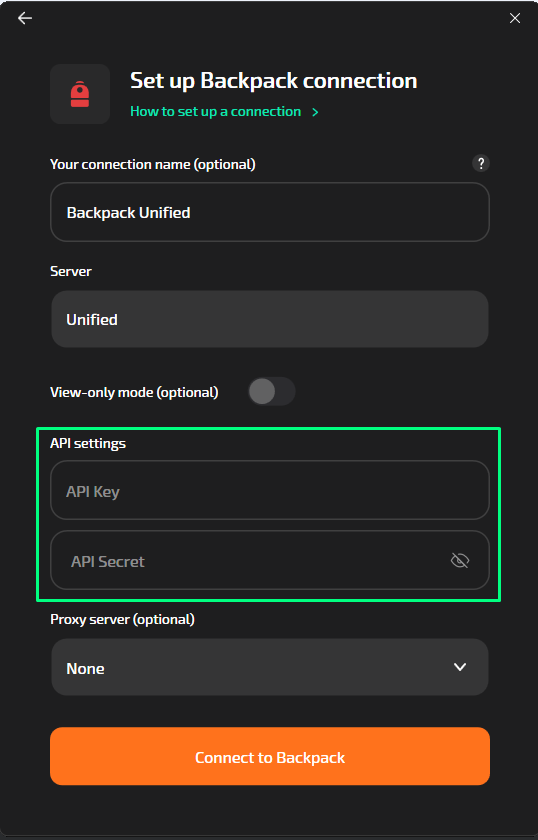
Launch [Tiger.com](https://tiger.com/) app and select **File → Connections →Setup** from the main menu.
In the window that opens, click the **+ Create New Connection** button and select **Backpack** from the list that appears.
In the window that opens, enter the API keys:
{% endstep %}
{% endstepper %}
{% hint style="success" %}
API keys are created for a unified trading account, so for trading both spot and futures assets, only one connection setup is sufficient.
{% endhint %}
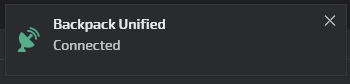
Upon successful setup, you will see a corresponding confirmation message and a green icon next to the Backpack connection:
---
# Agent Instructions
This documentation is published with GitBook. GitBook is the documentation platform designed so that both humans and AI agents can read, navigate, and reason over technical content effectively. Learn more at gitbook.com.
## Querying This Documentation
If you need additional information that is not directly available in this page, you can query the documentation by asking a question.
Perform an HTTP GET request on the following URL with the `ask` and `goal` query parameters:
```
GET https://support.tiger.com/english/connections/crypto-exchanges/backpack.md?ask=&goal=
```
`ask` is the immediate question: it should be specific, self-contained, and written in natural language.
`goal` is what the user is ultimately trying to achieve, the reason they need the answer. Sharing it helps GitBook give you a better, more relevant answer. A goal is most helpful when it describes the outcome the user wants rather than restating the question. For example, with `ask=how do I create an API token`, a goal like `automate deployments from our CI pipeline` lets GitBook tailor the answer to that use case.
The response will contain a direct answer to the question and relevant excerpts and sources from the documentation.
Use this mechanism when the answer is not explicitly present in the current page, you need clarification or additional context, or you want to retrieve related documentation sections.